 PJHTech Images
Why does text look blurry in an image?
Start by viewing the original at one image pixel per display pixel. If the letters are already unclear there, changing the file extension will not restore them.
Text and compression
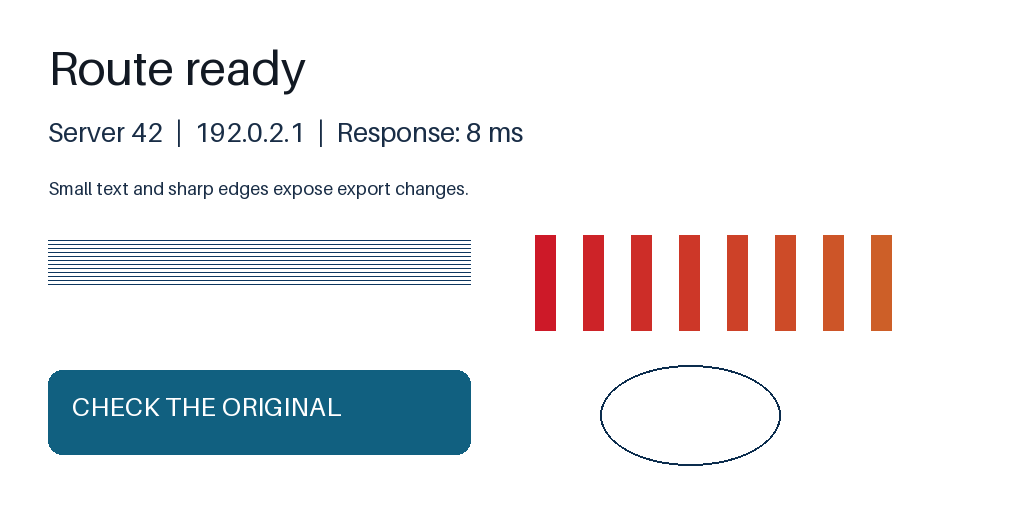
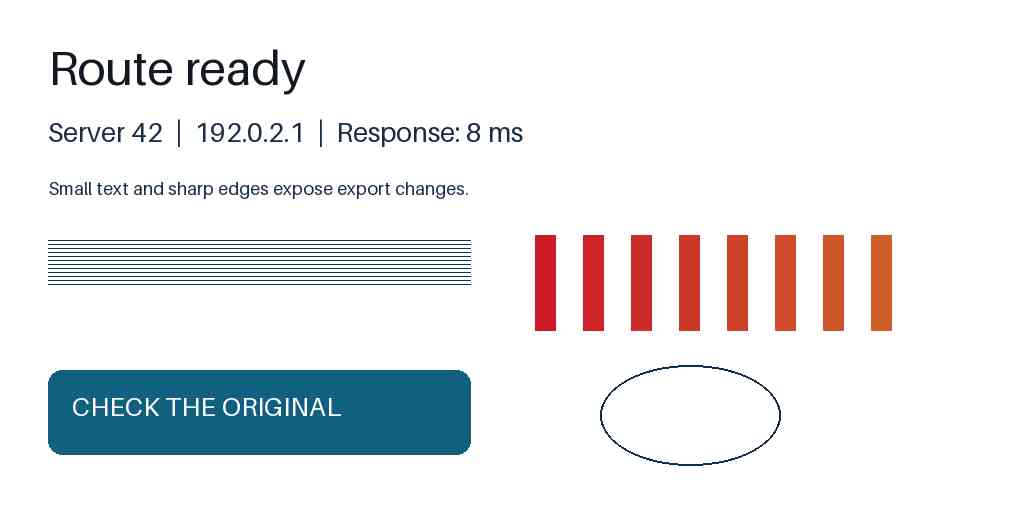
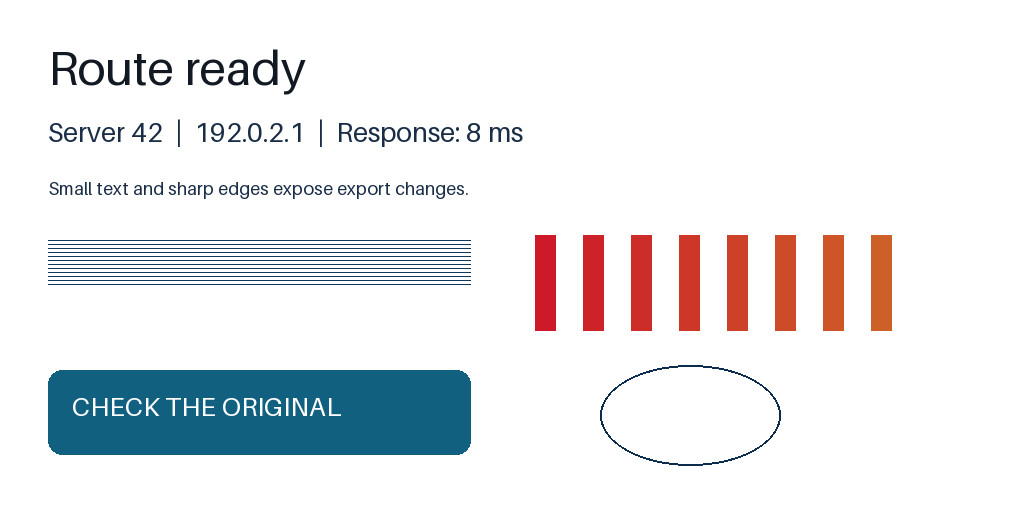
Look for speckles around letters and blurred colored edges in the quality-30 JPEG. Both JPEG quality and color sampling differ here; this is not a quality-only comparison. Open the full-size views to see the differences.
Compare at full size
Source PNG
JPEG: quality 30, 4:2:0
JPEG: quality 90, 4:4:4
Settings and measurements
| File | Dimensions | Bytes | Export settings |
|---|---|---|---|
| text-source.png | 1024 × 512 | 22,860 | Optimize: True |
| text-jpeg-q30.jpg | 1024 × 512 | 19,828 | Quality: 30, Subsampling: 2, Optimize: True |
| text-jpeg-q90.jpg | 1024 × 512 | 57,293 | Quality: 90, Subsampling: 0, Optimize: True |
Python 3.14.4, Pillow 13.0.0, Platform Linux, Webp 1.6.0, Jpeg 6.2, Avif 1.4.2
Find the stage that changed it
- Compare the original capture with the exported file. If only the export is damaged, change its settings.
- Check the pixel dimensions. A smaller export may have discarded detail.
- Check the displayed size. Enlarging a small image spreads its existing detail over more space.
- For a new text-heavy capture, try a lossless export and compare it with the original.
Browser zoom and high-density screens can make a casual screenshot comparison misleading. Use the supplied original downloads when inspecting our example.
Related guides
- Image sizes for 1× and 2× screens
- Which format should you use for screenshots?
- Can upscaling make a small image sharper?
- JPEG or PNG: which should you use?
Sources
- MDN: Responsive images
- W3C: PNG specification