 PJHTech Images
Which format should you use for screenshots?
Start with PNG for a screenshot of text or a user interface. It avoids lossy changes to the pixels. Size and display scaling still matter.
Text and compression
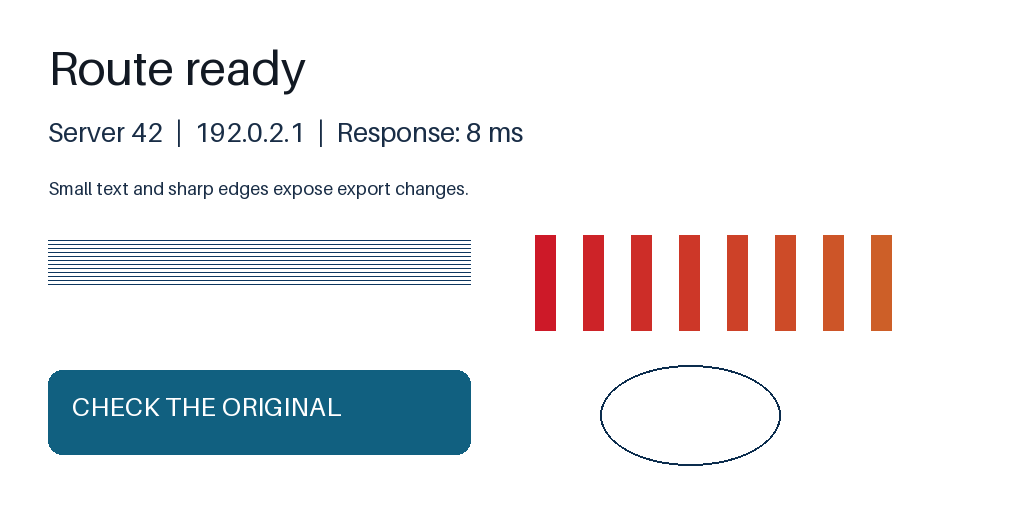
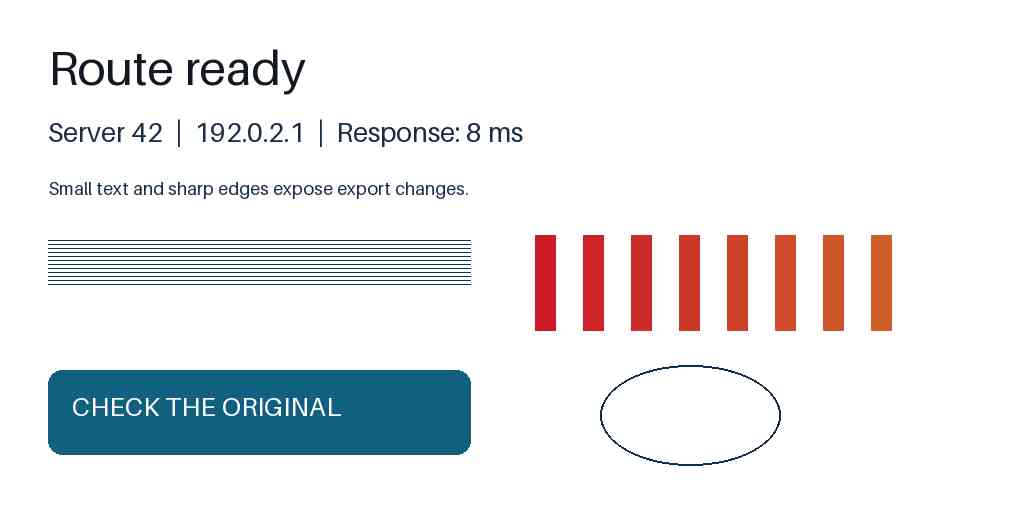
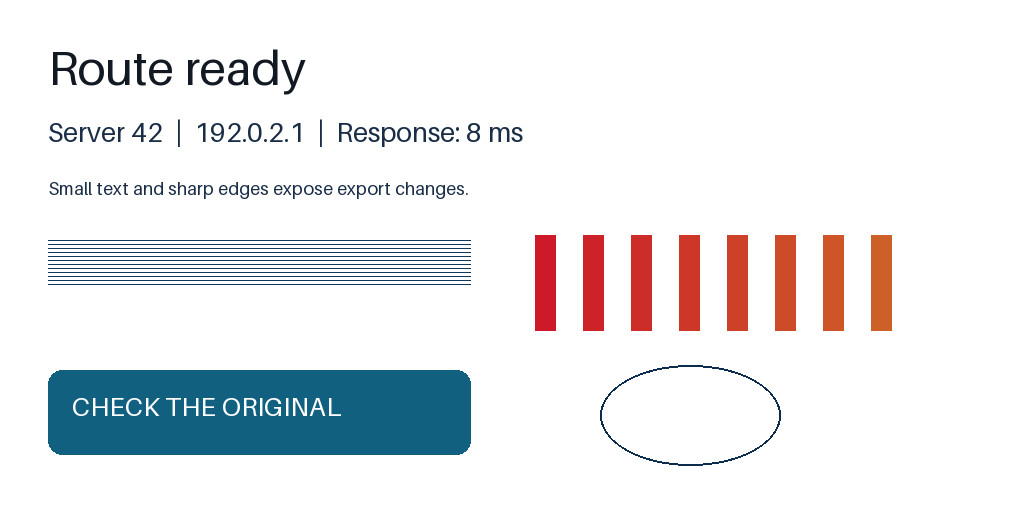
Look for speckles around letters and blurred colored edges in the quality-30 JPEG. Both JPEG quality and color sampling differ here; this is not a quality-only comparison. Open the full-size views to see the differences.
Compare at full size
Source PNG
JPEG: quality 30, 4:2:0
JPEG: quality 90, 4:4:4
Settings and measurements
| File | Dimensions | Bytes | Export settings |
|---|---|---|---|
| text-source.png | 1024 × 512 | 22,860 | Optimize: True |
| text-jpeg-q30.jpg | 1024 × 512 | 19,828 | Quality: 30, Subsampling: 2, Optimize: True |
| text-jpeg-q90.jpg | 1024 × 512 | 57,293 | Quality: 90, Subsampling: 0, Optimize: True |
Python 3.14.4, Pillow 13.0.0, Platform Linux, Webp 1.6.0, Jpeg 6.2, Avif 1.4.2
Before exporting
- Capture the original application at a readable size.
- Crop empty space and irrelevant parts without cutting off useful context.
- Keep the original pixel dimensions unless the destination needs a smaller copy.
- Check the final file at the size readers will see it.
When the screenshot contains mostly a photo
Try another format. A screenshot of a photograph does not automatically need the same settings as a screenshot of a spreadsheet.
Do not enlarge a tiny text capture and expect a format change to restore readable letters.
Related guides
- Why does text look blurry in an image?
- Resizing, cropping and padding
- JPEG or PNG: which should you use?
Sources
- W3C: PNG specification
- MDN: Responsive images